Devices
Listing devices and previewing device details
You can view the list of available devices in the left sidebar after adding the first one. The list will show all devices that are currently connected to the system. Each device will be displayed with its name, and current state (if available - check quick parameters below).
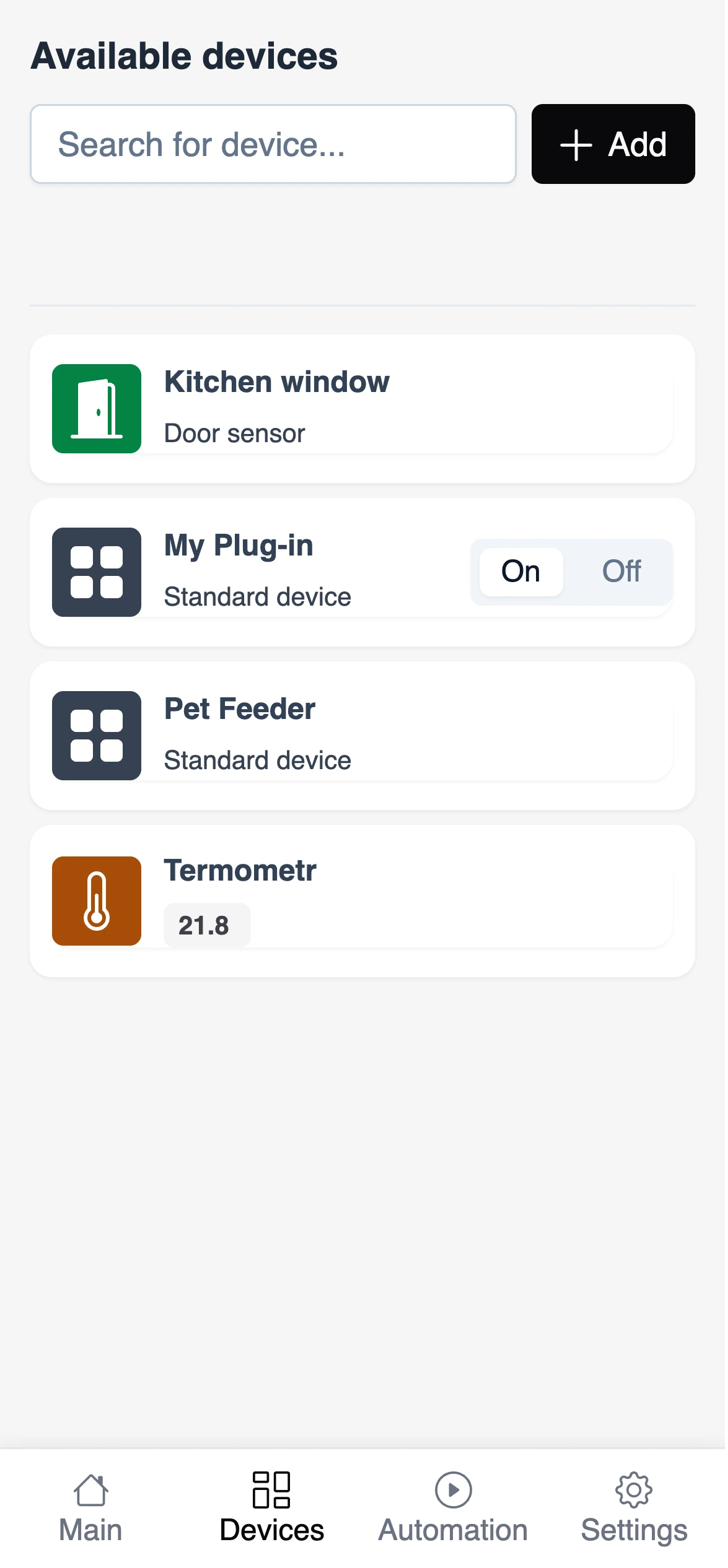
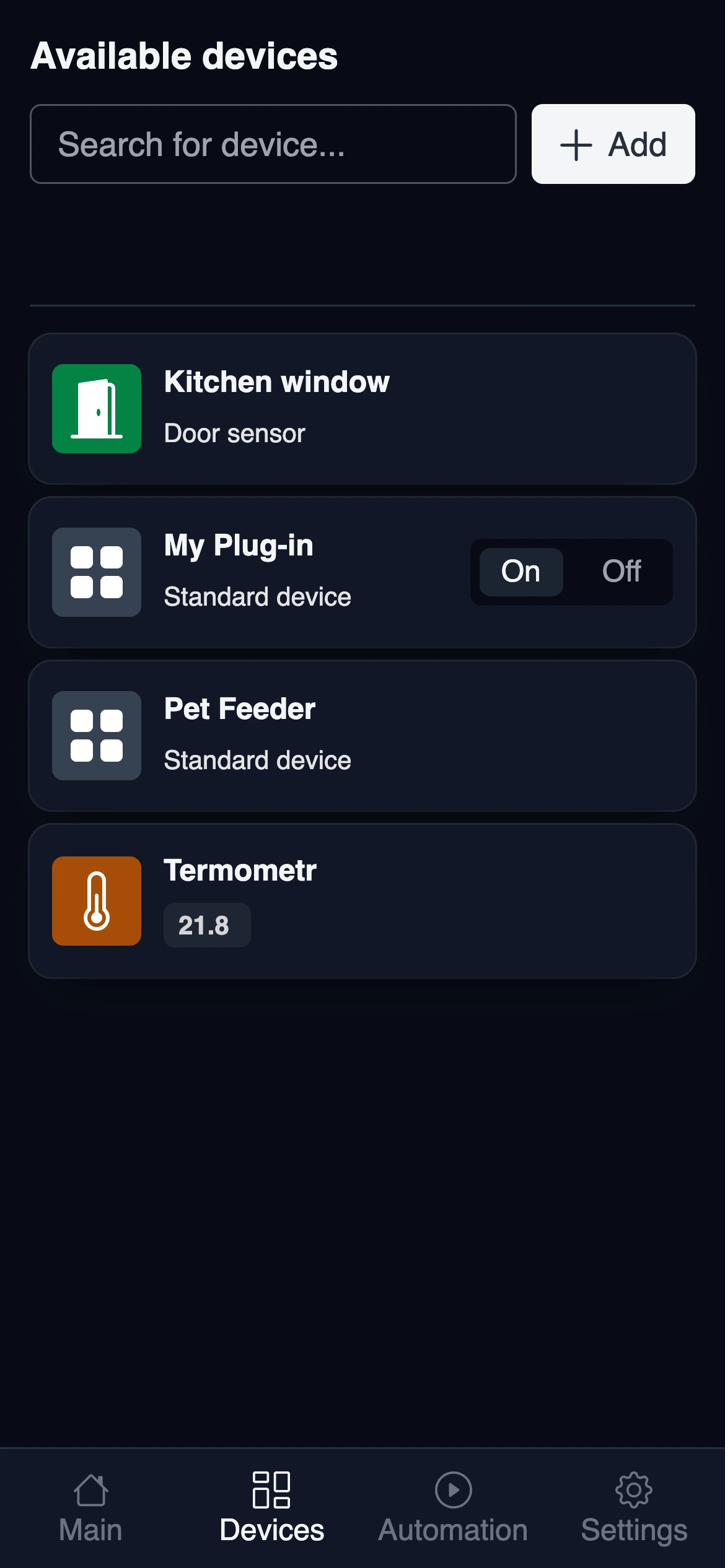
The devices are sorted alphabetically by name. The search will match the device name, so you can use it to find a specific device if you have many devices in your system.
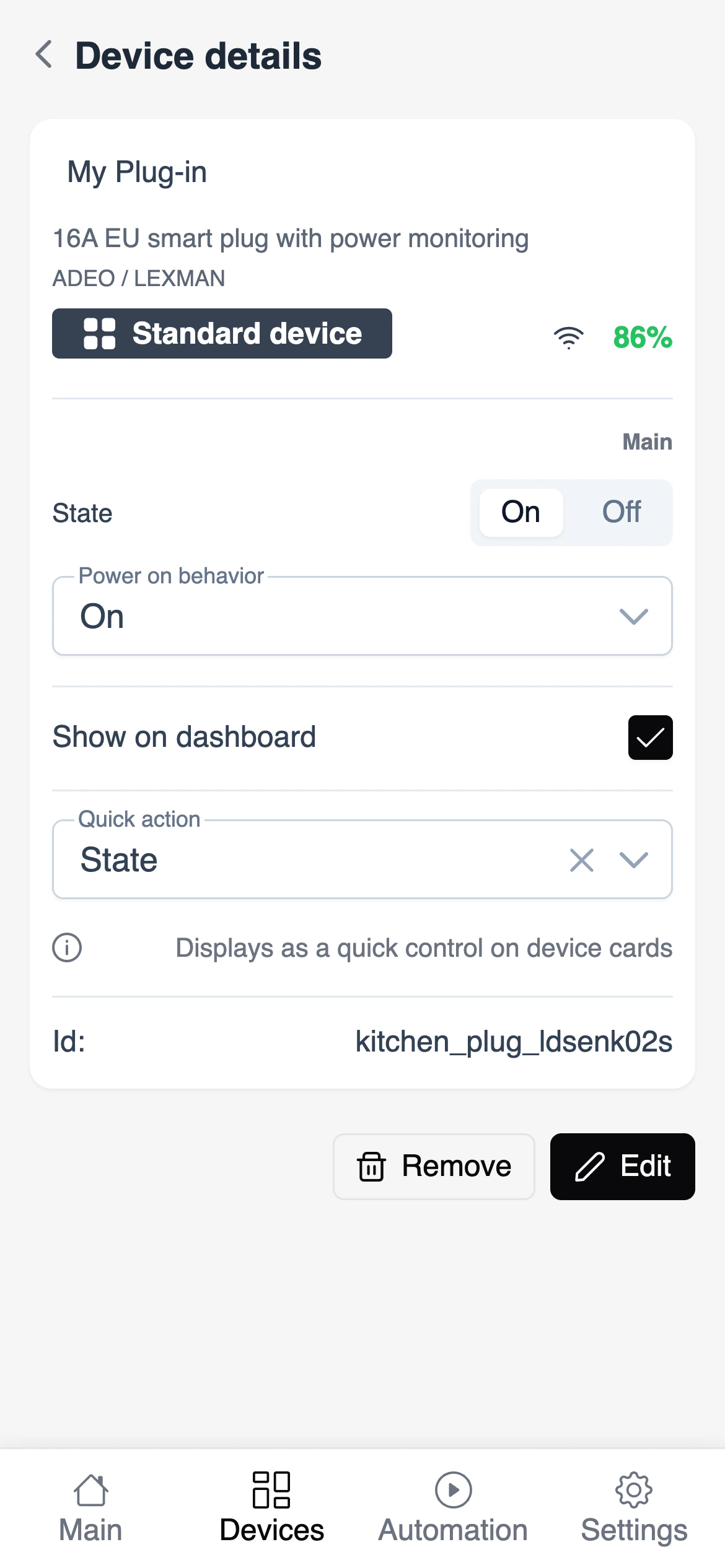
Clicking on a device in the list will open the device details view, where you can see more information about the device, its current state, and available actions.
Editing and removing a device
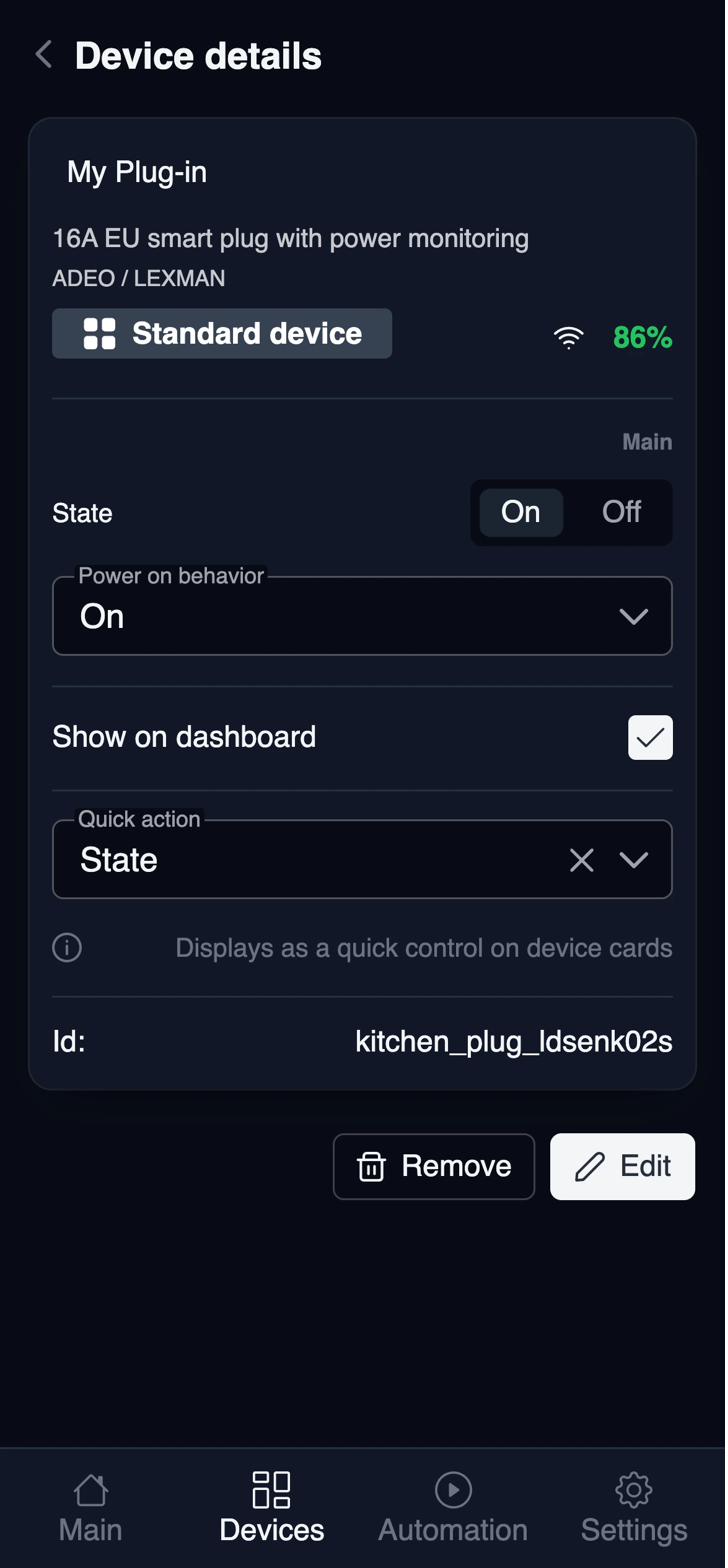
Device details view also allows you to edit the device information or remove it from the system. To edit the device, click on the "Edit" button, make the necessary changes, and save them. To remove the device, click on the "Delete" button and confirm the action.

Remember that removing a device will modify the current automation rules that use it. Make sure to check the rules and update them if necessary before removing a device.
Remember the device will also remove it from zigbee network. Some devices can go automatically into paring mode.
Quick actions and Quick parameters
You can quickly access critical parameters or actions from the list of devices by selecting preferred actions or parameters from the details page.


This will present them on the device card in the list.
Main dashboard view
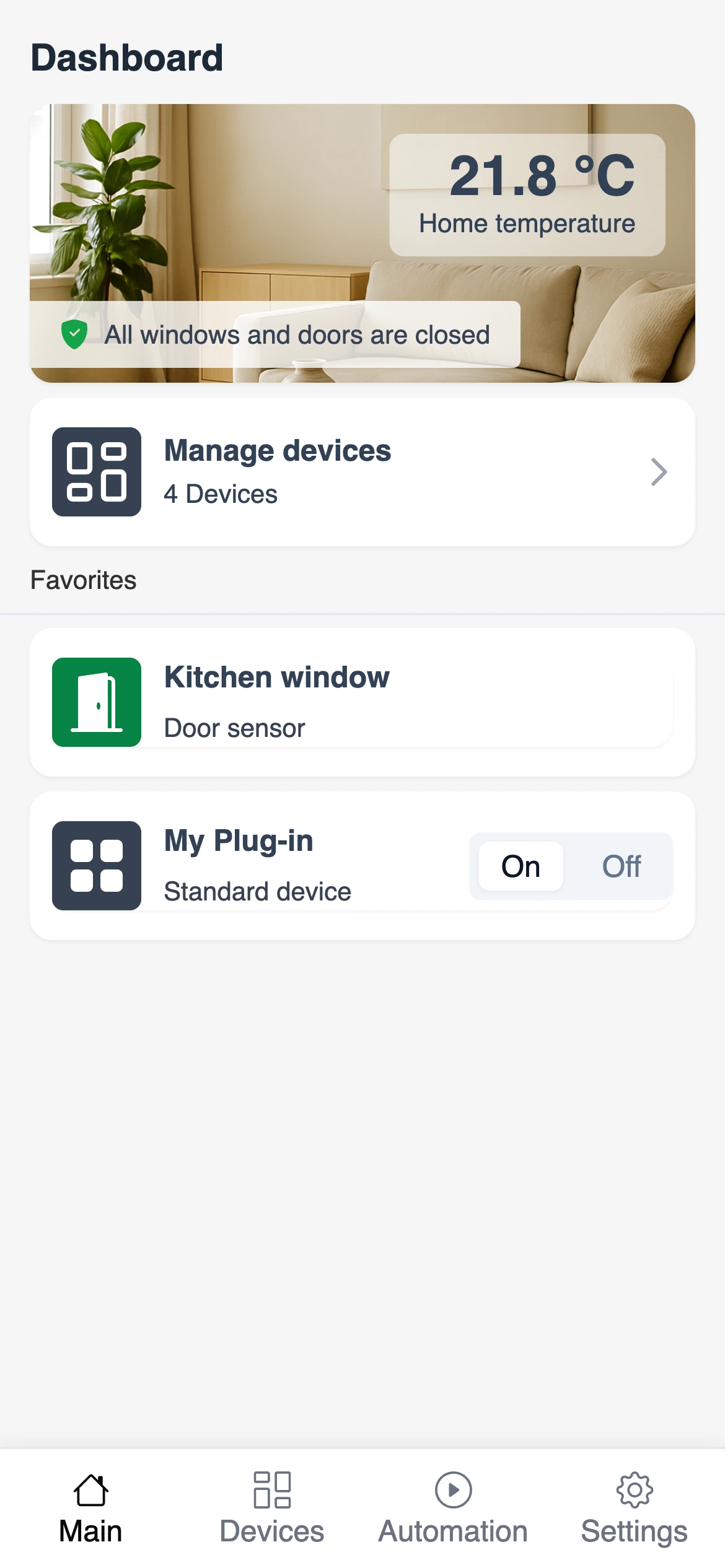
Each device can be added to the main dashboard view as a favorite. This allows you to quickly access the most important devices and their parameters without having to navigate to the device details page. To enable it, check the 'Show on main dashboard' checkbox on the device details page.


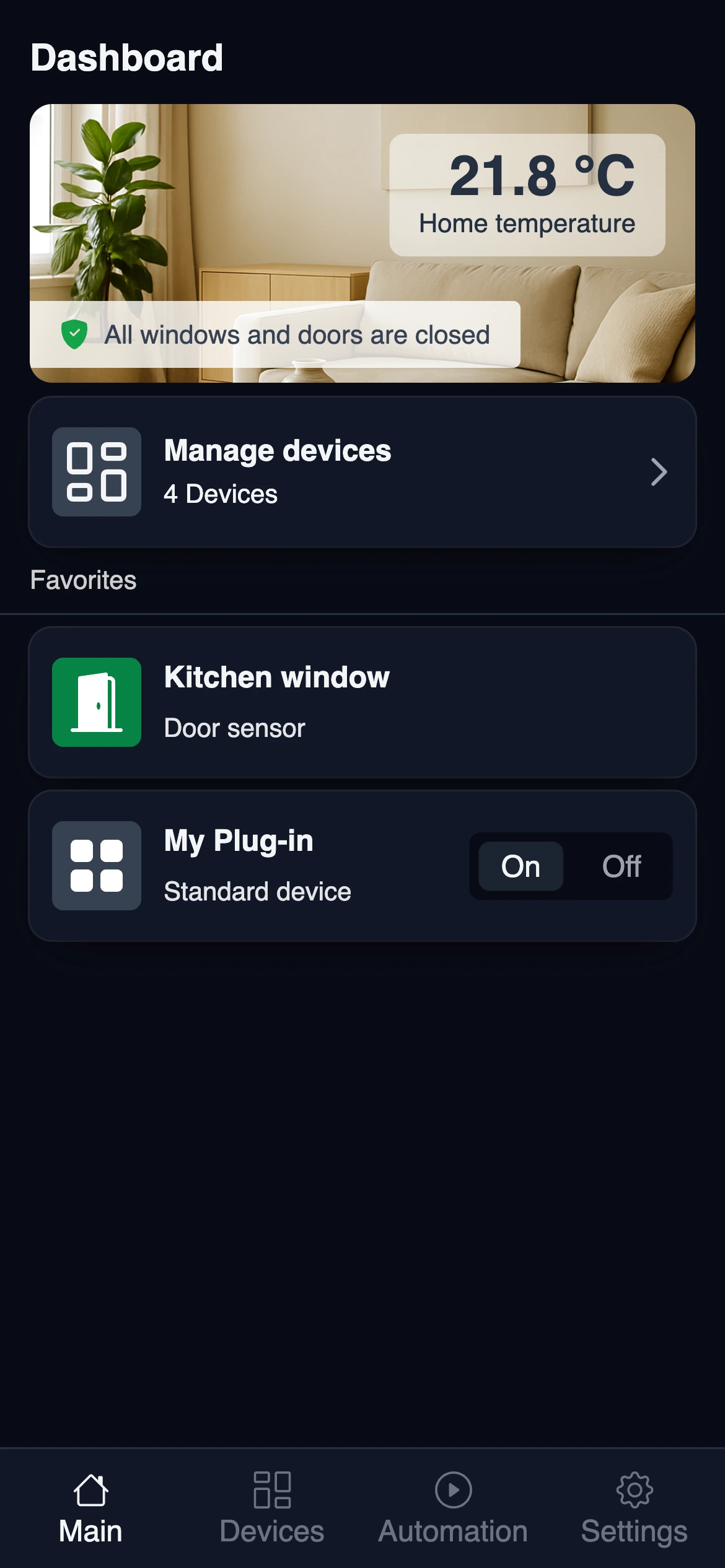
On the screen below, you can see the main dashboard view with the device added. The Kitchen window, for example, is now visible on the main dashboard with its current state.
Add Device
Paring Zigbee Device
Sparrow Home allows you to pair Zigbee devices to your smart home network. Follow the steps below to add a new device.
- Click on the "Add Device" button
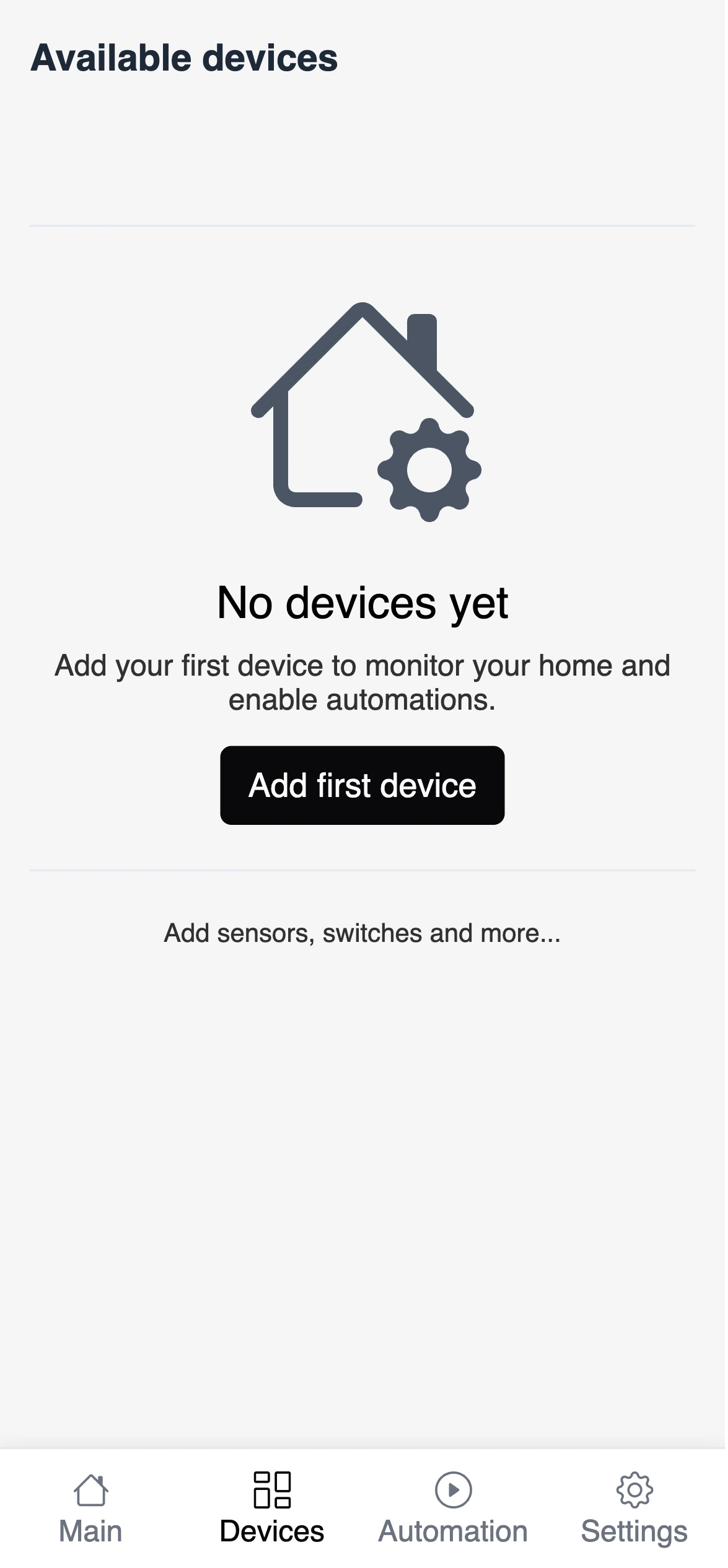
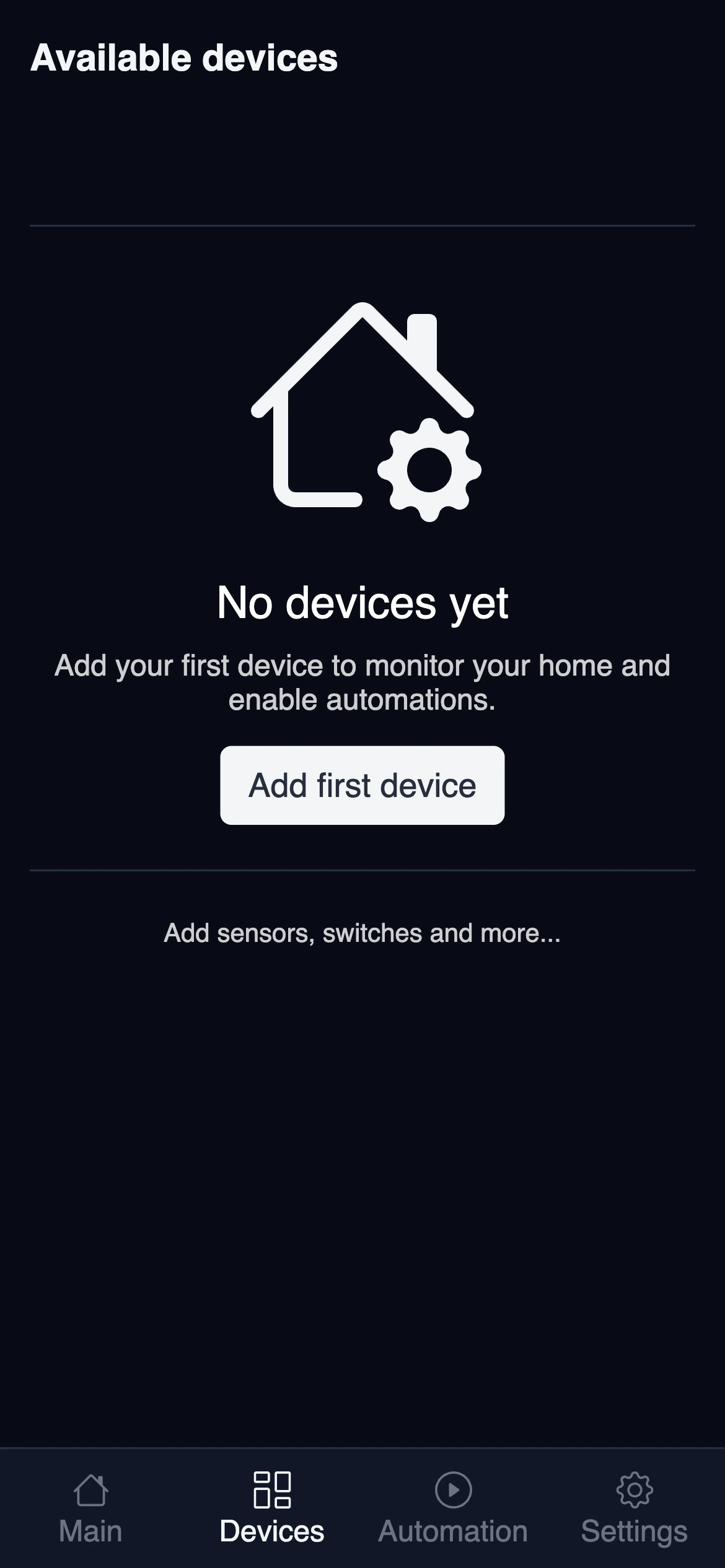
- Provide the name and device type of the device and click on the "Connect" button.
You can select one of the few device types. In most cases you will choose to pair a Standard Device. Others are:
- Temperature Sensor
- Door sensor
- Siren
- Remote
The Connect button will start the pairing process. By default, the Zigbee network doesn't allow pairing requests from devices. This action enables this mode for 60 seconds. If the notification is completed successfully, you will see the success message on the screen.
Don't worry if your phone goes to sleep during the pairing process. The system will continue to wait for the device to connect until the timeout is reached.